World Projections and Coordinate Systems
As the world is a 3D object, it is impossible to represent it in 2D without some distortion. This is the problem of projections. Projections are the mathematical formulas that transform the Earth’s 3D surface into a 2D plane. Thankfully, GIS software can be used to perform these transformations in near real time. Because of this, we may take for granted how space is distorted based on which projection is chosen.
In the exercise, you will explore how projections impact our conception of distance by moving between GIS and CAD software.
The GIS portion of the exercise is provided in two versions: one for QGIS, and one for Python using GeoPandas and pyproj. Both cover the same steps with the same data, share the same Rhino and Grasshopper steps, and have the same deliverable. Choose one or the other. Specifically, you will:
- Create a new map with country boundaries, points representing world cities, and a global grid
- Change the map projection so that all layers are represented in an
Equidistance Conicprojection - Reproject and save new copies of files so that all files are in the same projection
- Import these layers into Rhino using Grasshopper
- Calculate the shortest paths between multiple cities
- Import these paths back into your map
- Visualize the shortest paths in a number of different projections
- Compose map visualizations to submit
Deliverables
Four maps, composed as landscape 8.5x11 pages and submitted as a combined PDF. Each map should clearly depict the lines that extend between cities, the distances between each, and a representation of the cities themselves. Remember that the primary goal of each map is to convey the spatial relationship between the cities you chose, so the map scale and layout should reflect those relationships appropriately.
Data
- World Cities are available from Esri’s ArcGIS Hub
- World Countries are available from Esri’s ArcGIS Hub
- World Lat/lon grid
Exercise (QGIS)
Getting Started
Create a new project in QGIS. Add the world cities and world countries layers to your map. Represent each layer such that you can see the distribution of cities across the continents. Use the attribute filter to only show five-degree intervals to improve legibility, and add the grid as the top drawing layer. Adjust line weight and the colors in your map to maximize legibility.
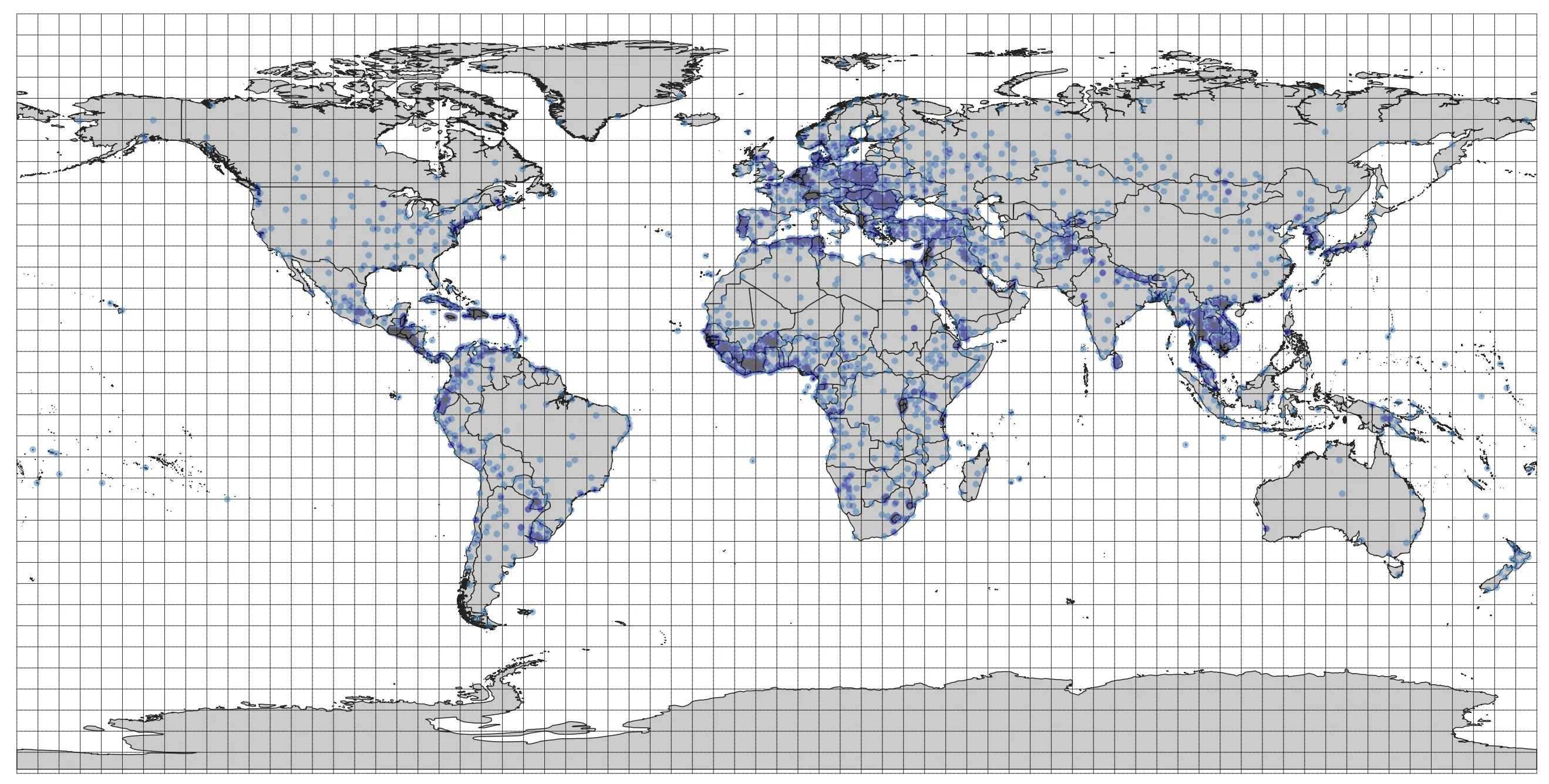
Inspecting projections
Each of these different datasets has an idea of its coordinate reference system- it knows where it’s origin is, what datum it refers to, and what projection it is in. In desktop GIS software, that is why map layers are able to reproject “on the fly”- the software knows how to apply conversions so that the spatial relationship between layers is what we expect. Mapping with GeoPandas is less automatic- if we plot two layers with different coordinate systems together on the same plot, they may appear very far away from each other.
Open the world countries layer properties and observe what coordinate system it uses. If you are using QGIS, confirm that the project’s coordinate system matches this layer’s coordinate system. If you are using Python, make note of this projection, as it is what we will use moving forward. In both cases, we will end up re-projecting layers into this coordinate system.
- To check a layer’s CRS in QGIS, right click on a layer > Properties > Information (or double click on the layer > Information) and verify the information
- In Python, print the layer’s
crsproperty:layer_name.crs - If the layer in question is a shapefile, you can open the
.prjfile. If you are working with a.geojsonfile, thecrsinformation will be at the top of the file.
Changing the map document’s projection
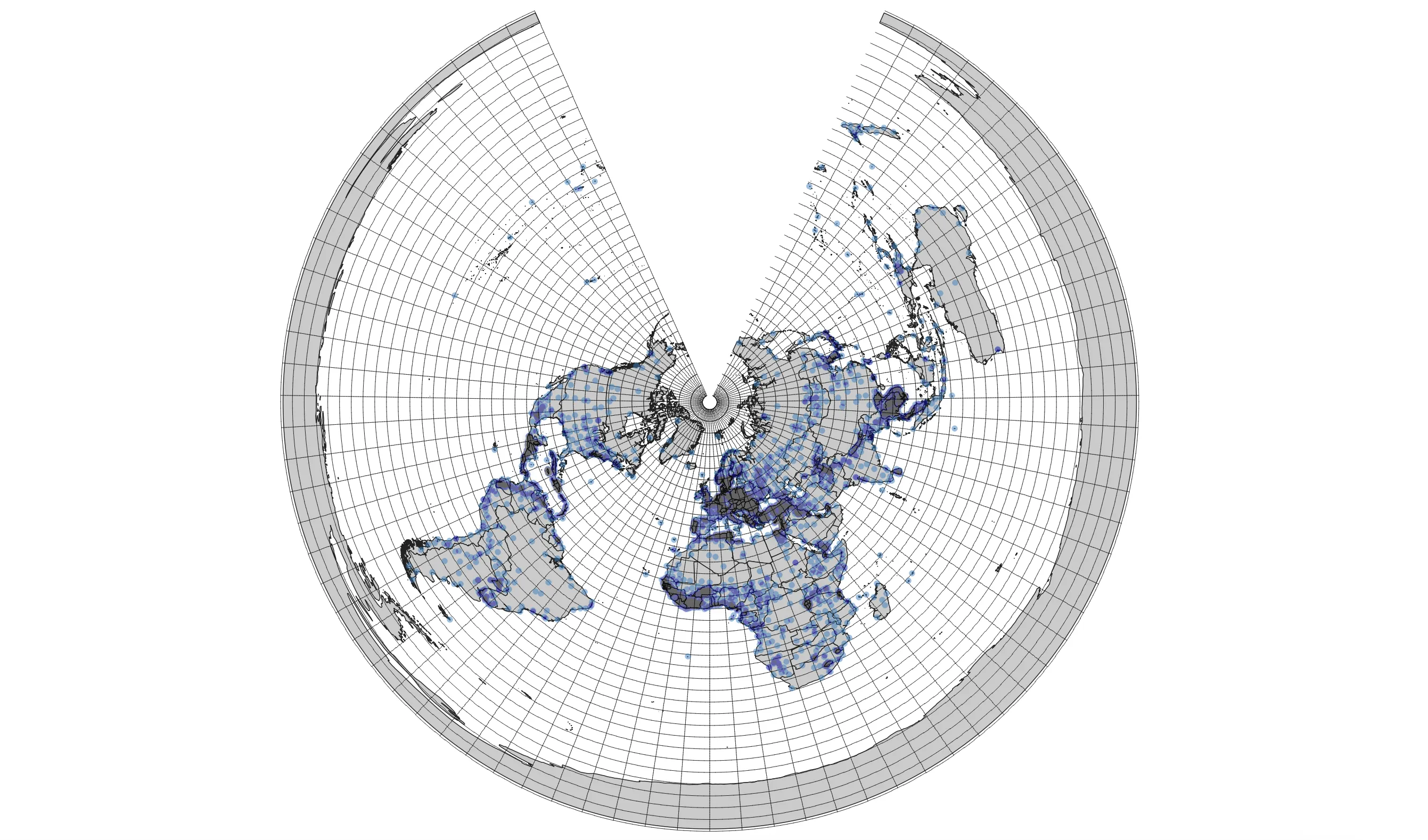
We will utilize a projection developed by ESRI to view the world in an equidistant, conic projection. This means that the distances between points on the world are preferenced over the size or shape of points on the earth. Information about this projection can be found here. In the lower right hand corner of your QGIS window, click on the Current CRS selector, which launches a CRS selector wizard. In the search bar, type 54027 and then select the result.
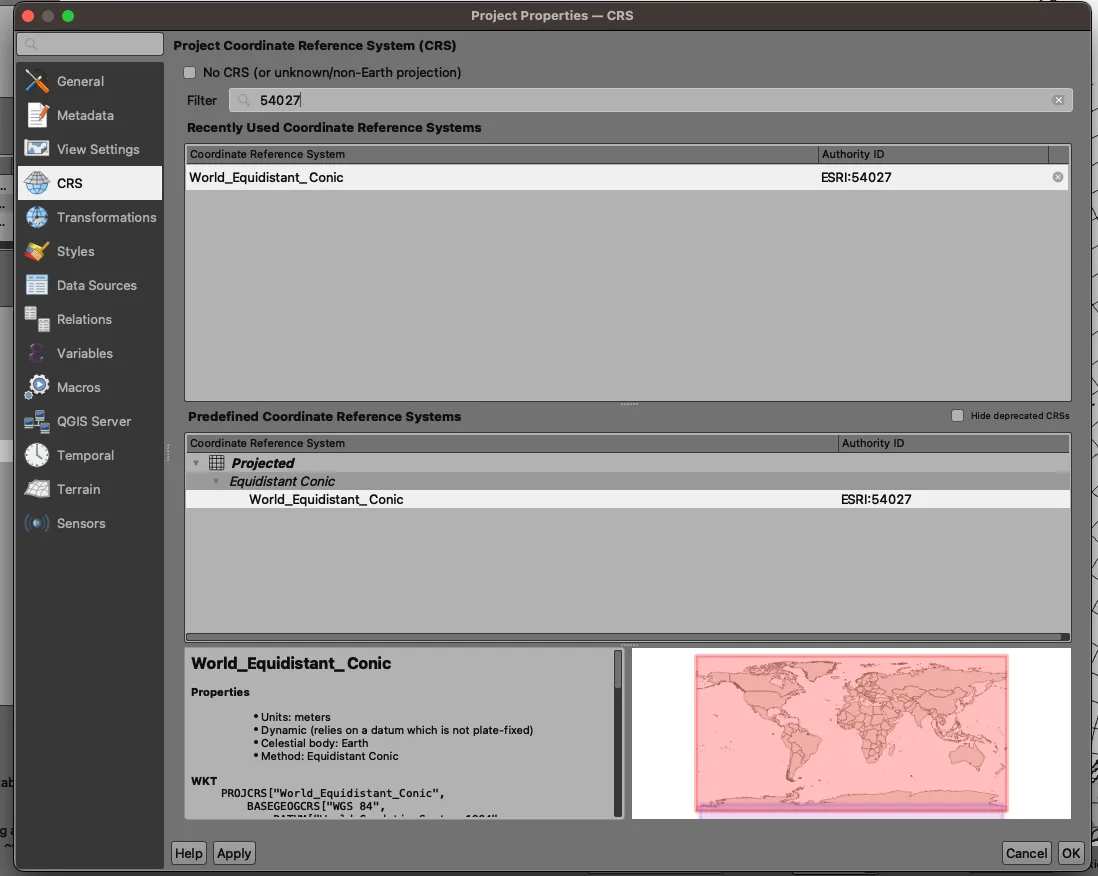
Now when you click OK, you will see the world under this other projection system.
Changing projections
Remember, without changing the projection of the file, layers will look correct per a given projection, but are still internally in reference to the coordinate system of the file. We must reproject the layer to the target projection system to be able to perform analysis or use the layer in another software. Note that this is different than “changing” the layer’s projection system- changing the system without reprojection will set a different origin without recalculating new feature geometries.
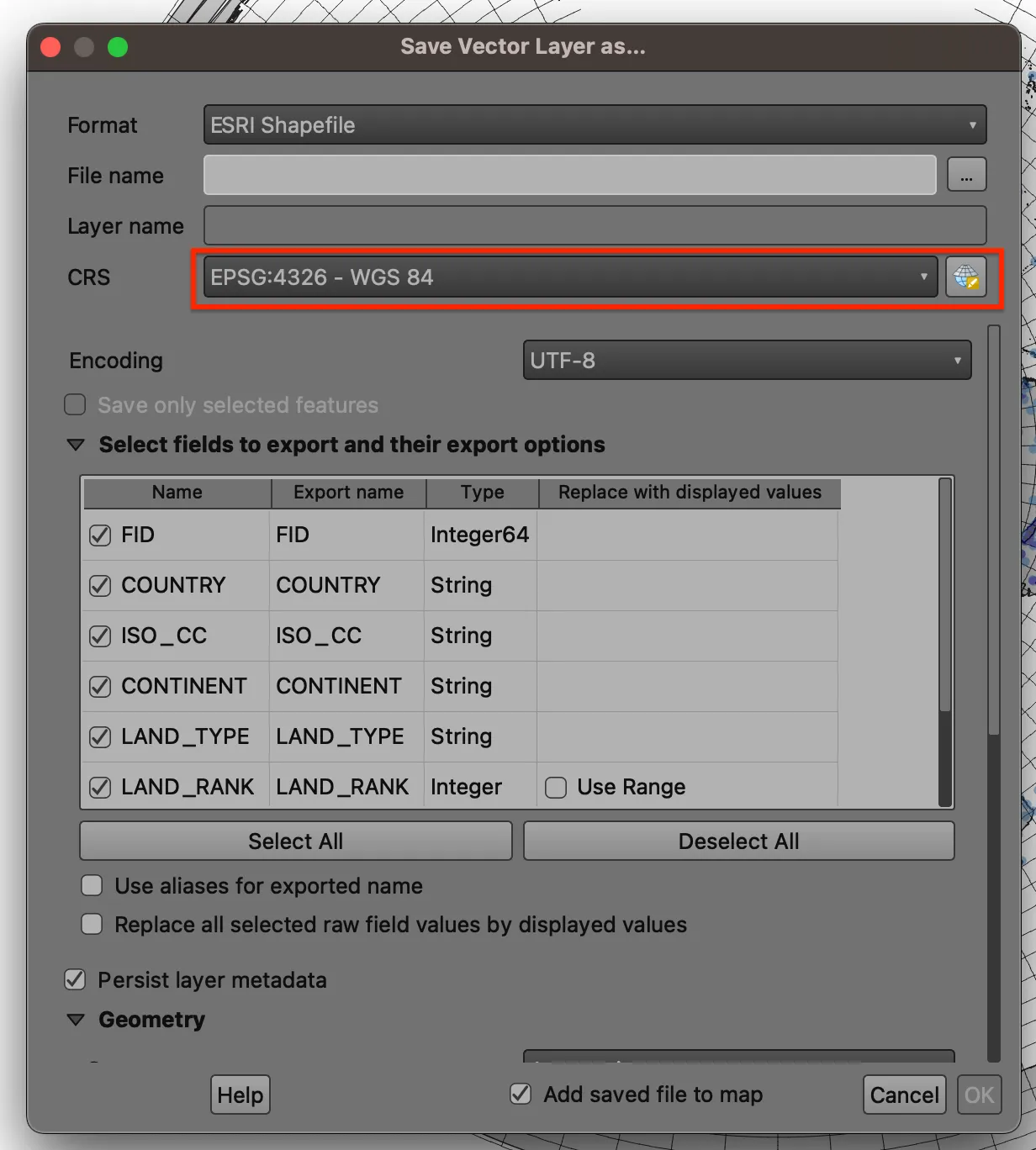
To reproject the layer in QGIS, right click on the layer in the layer tree, and click Export > Save Features As....
Click the ellipsis to save your file in your project folder. By default, QGIS will attempt to save files in your computer’s root folder. Then, use the CRS dropdown to select 54027, the projection we are using for this exercise. This will ensure that the layer, and not just how the layer is represented in the QGIS session, reflects this projection system.
Export both the countries and cities layers in this new projection.
Drawing shortest paths between world cities
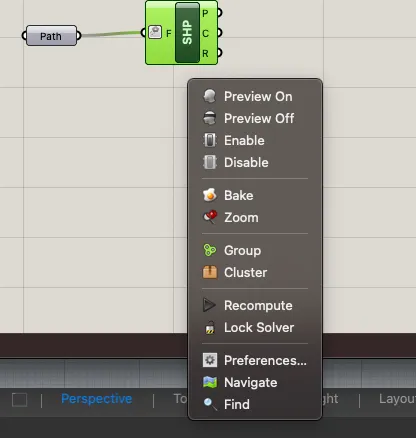
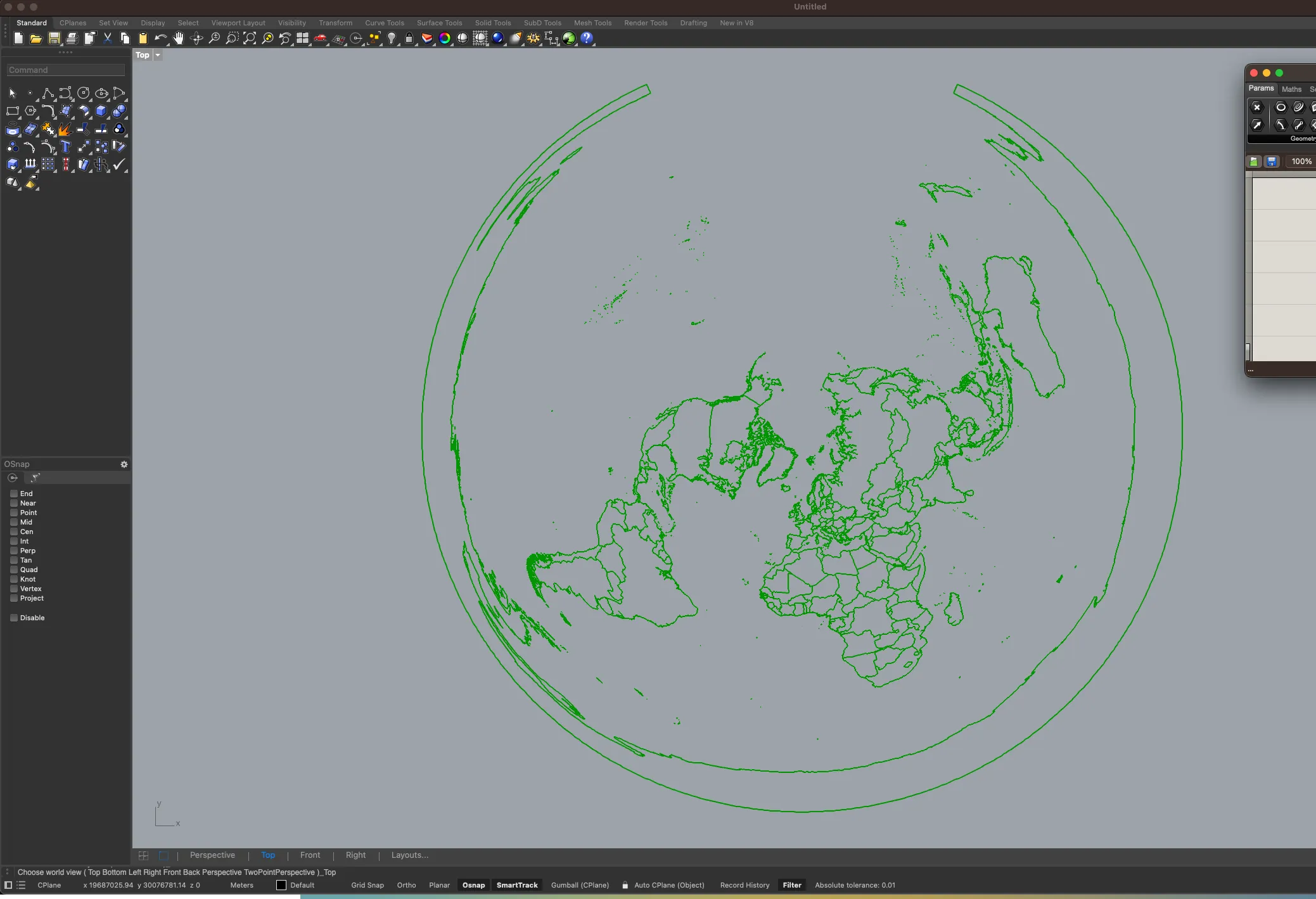
Open Rhino and create a new project for large objects in meters. Launch Grasshopper. In a new canvas, search for the Import SHP component and attach a File Path component. Right click on the file path component and click on Select one existing file. Navigate to your newly created shapefile and select the file ending with .shp. Select the Import SHP component, and then right click on the canvas to select Zoom- this will recenter the Rhino window to the component’s solution. You will now see the world in the projection we selected.
Note the x and y coordinates in the bottom left corner of the Rhino window- we see that as we move our cursor across the canvas, the position is reported back to us in meters, matching the coordinates we saw in QGIS. In Grasshopper, right click on the Import SHP component and bake the solution to a layer. Now we will be able to interact with the geometry in Rhino.
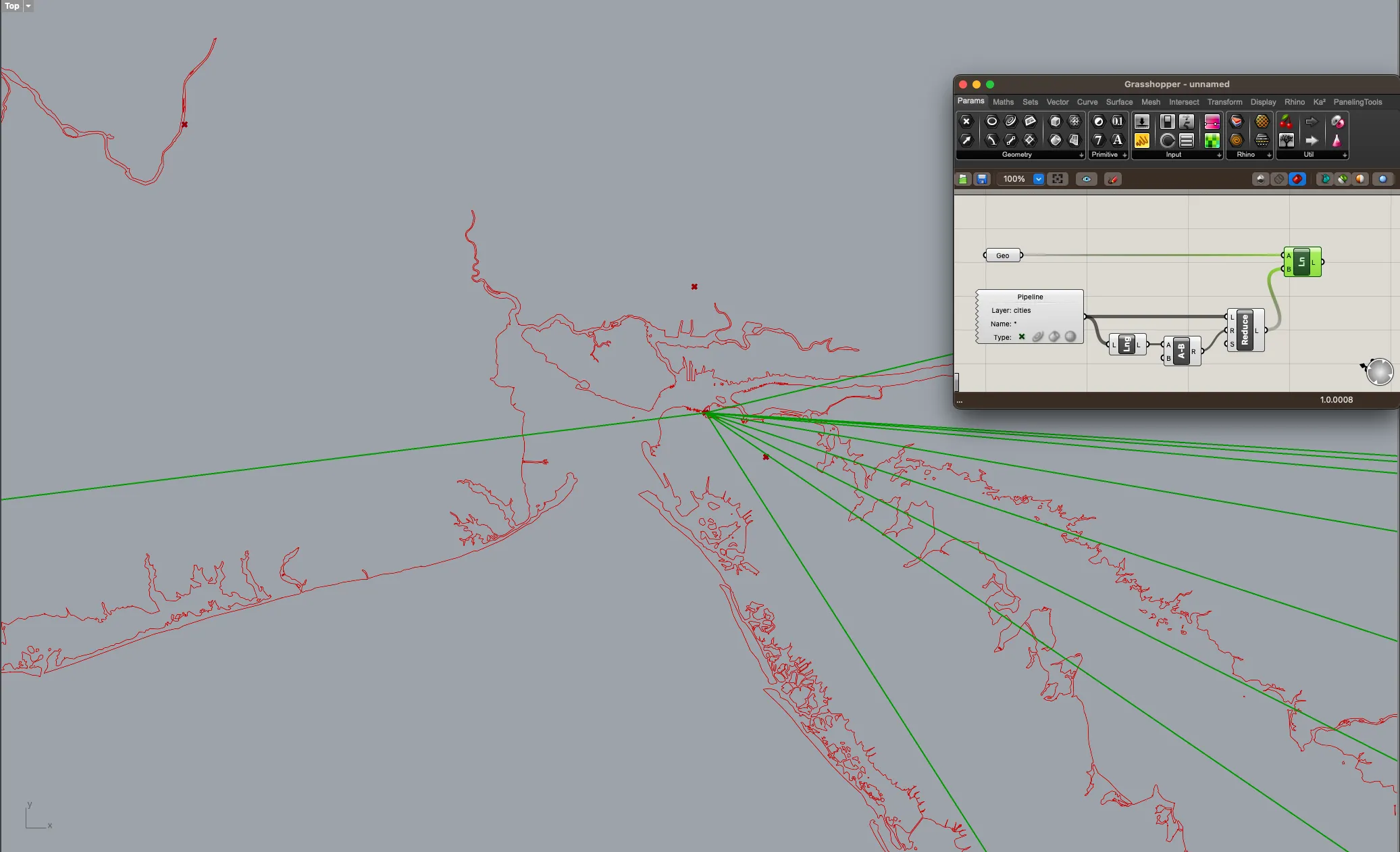
Perform the same process with the world cities, baking the points to a different layer. We are now ready to draw shortest paths between world cities.
There are a few options for selecting cities for this exercise, but the final goal is to draw shortest path lines between cities a handful of cities.
Some options include:
- using the
LineorCurvecommand in Rhino to draw a series of straight lines between city points - using Grasshopper to identify a city and then selecting a series of cities (randomly or otherwise) to draw lines between
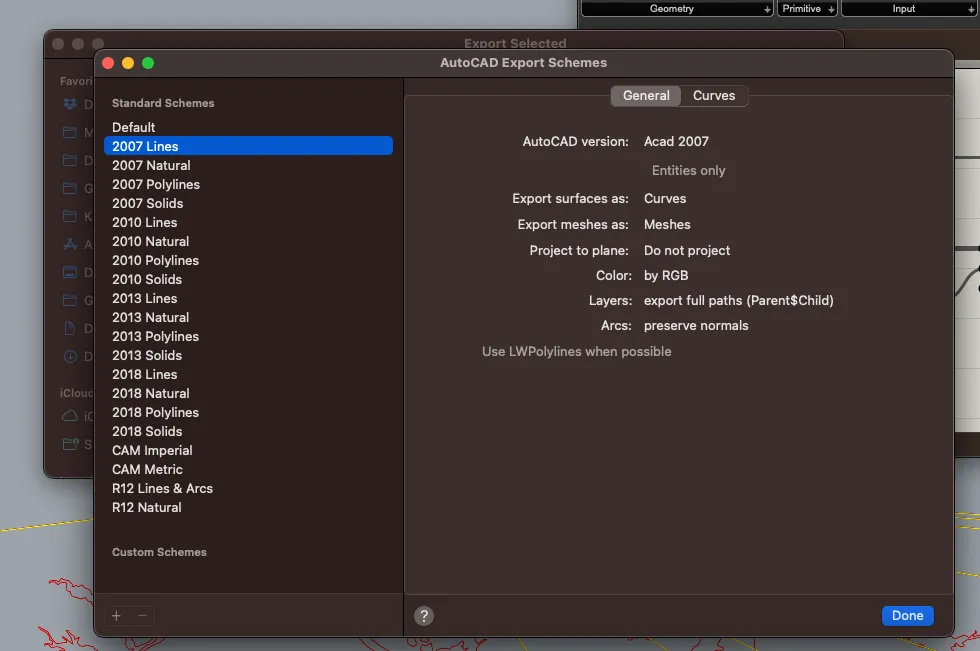
Regardless of how you create your lines, once you have finished, select the geometries and in Rhino navigate to File>Export Selected. Save the file in the .dxf format to your project folder using the 2007 - Lines option in the Edit Schemes interface.
Importing into QGIS
Return to your QGIS window. Add the newly created layer to QGIS. As you add the layer, you will notice that it does not inherently know what CRS to use, yet it should register properly on your map. You can set the projection by clicking on the question mark next to the layer name in the layer tree. Set the CRS to 54027. Save the file as a shapefile for use in the next step.
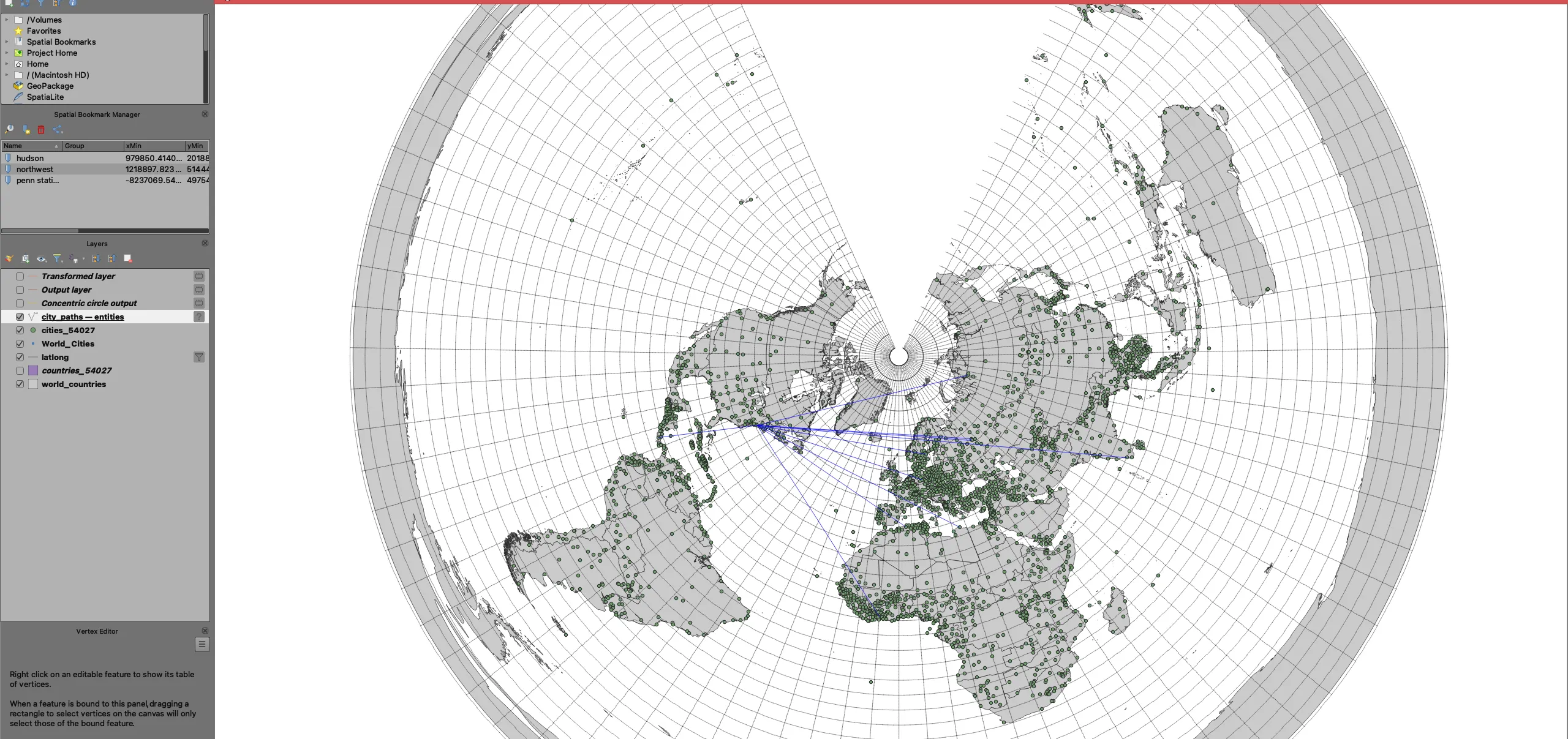
Inspecting results
Change the map project projection to 4326. We will use the Shape Tools plugin to visualize the results in other coordinate systems. Click on Plugins>Manage and Install Plugins... and search for Shape Tools. Install the package. Once the package has been installed, go to Vector>Shape Tools>Geodesic Shape Densifier.... Select the shapefile you created in the previous step and set an output location.
Once the tool finishes, you will see the shortest path lines expressed relative to the curvature of the earth.
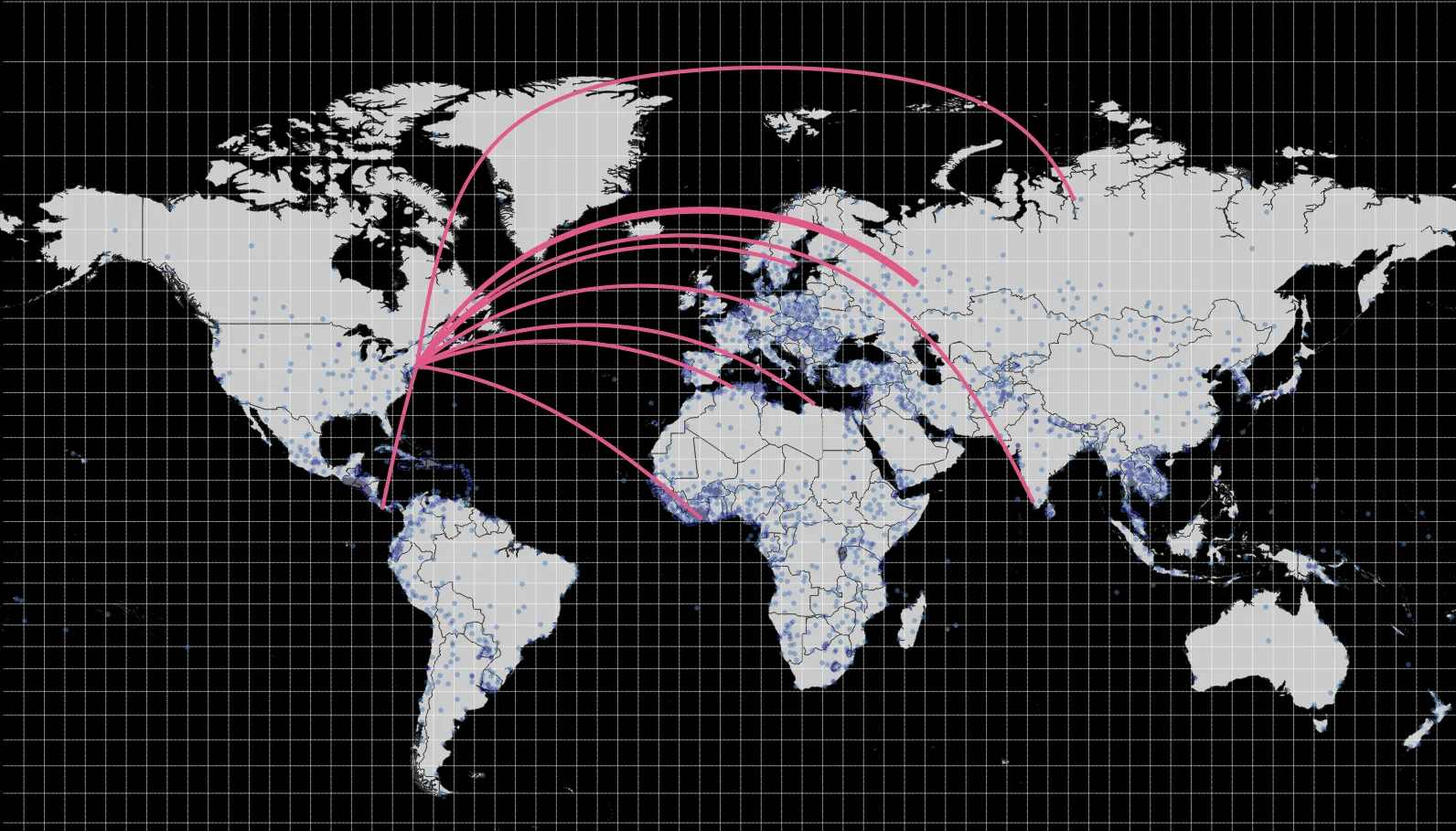
Note the differences compared to the straight lines that you drew in Rhino.
Per the deliverables listed above, you must submit four PDF maps that clearly represent these lines, and the cities they connect, to a lay audience. Choose three projections that represent the world at the global scale (filter by typing “world” in the Project Properties - CRS menu). Some examples include World Gall Stereographic and Robinson \
Exercise (Python)
This version of the exercise follows the same steps as the QGIS exercise above, using GeoPandas and pyproj in a Jupyter notebook in place of the QGIS interface. The data, the concepts, the Rhino and Grasshopper steps, and the deliverable are all the same. It assumes that you already have a conda environment set up that includes geopandas and matplotlib (pyproj and shapely are installed alongside geopandas). For more information, see the setup instructions described in the course resources page.
A note on vocabulary as you move between the two versions: QGIS has a project with its own coordinate reference system, into which every layer is reprojected “on the fly” as it is drawn. It handles the math so that what you see makes sense, even if datasets are not in the same system. Each GeoDataFrame carries its own coordinate reference system, and reprojecting is something you do explicitly, either to draw a layer or to save a new copy of it.
Getting Started
Activate your conda environment, and create a new Jupyter notebook. Save it in your project folder (next to your data folder) with a clear name like tutorial03.ipynb.
In the first cell of your notebook import the libraries that you will use throughout this tutorial.
import geopandas as gpdimport matplotlib.pyplot as pltimport numpy as npimport pyprojfrom matplotlib.backends.backend_pdf import PdfPagesfrom shapely.geometry import LineString, MultiLineString, PointAdd the world cities, world countries, and grid layers to your notebook. The paths below assume that you saved the three datasets in a data/tutorial03 folder as shapefiles. Adjust them to match where you saved the data and the format that you downloaded. The datasets are large, so be patient!
cities = gpd.read_file("data/tutorial03/World_Cities.shp")countries = gpd.read_file("data/tutorial03/World_Countries.shp")grid = gpd.read_file("data/tutorial03/latlong.shp")Take a look at the attributes of the grid to find the field that you will use to filter it.
grid.head()Each line in the grid is one degree long, and the DEGREE5, DEGREE10, DEGREE15, DEGREE20, and DEGREE30 fields record whether that line falls on a five-, ten-, fifteen-, twenty- or thirty-degree interval. The equivalent of the attribute filter in QGIS is to select the rows of the GeoDataFrame that meet a condition. Use it to only show five-degree intervals to improve legibility:
grid_5deg = grid[grid["DEGREE5"] == "Y"]print(len(grid), len(grid_5deg))Inspecting projections
Each of these different datasets has an idea of its coordinate reference system- it knows where it’s origin is, what datum it refers to, and what projection it is in. In desktop GIS software, that is why map layers are able to reproject “on the fly”- the software knows how to apply conversions so that the spatial relationship between layers is what we expect. Mapping with GeoPandas is less automatic- if we plot two layers with different coordinate systems together on the same plot, they may appear very far away from each other. The map that you just drew only lined up because all three layers happen to share the same coordinate reference system.
Print the coordinate reference system of each layer to confirm this.
print(cities.crs)print(countries.crs)print(grid.crs)EPSG:3857EPSG:3857EPSG:4326There’s a mismatch- all three need to be in WGS 84, a geographic coordinate reference system whose units are degrees of latitude and longitude. This is where GeoPandas gets this information from:
- If the layer in question is a shapefile, the coordinate reference system is stored in the
.prjfile that accompanies it, which you can open in a text editor. - If you are working with a
.geojsonfile, thecrsinformation will be at the top of the file. - For more detail than the code alone, print
countries.crs.to_wkt(pretty=True). This is the same information that QGIS shows under Properties > Information.
Reproject all layers to WGS 84 (EPSG:4326) to ensure they align correctly.
# we are converting the projection, and not just setting the CRS attributecities = cities.to_crs(epsg=4326)countries = countries.to_crs(epsg=4326)# remember, the grid is already in EPSG:4326Now represent each layer such that you can see the distribution of cities across the continents. Remember that layers are drawn in the order that you call plot(), so draw the grid last to add it as the top drawing layer. Adjust line weight (linewidth), marker size (markersize), and the colors in your map to maximize legibility.
fig, ax = plt.subplots(figsize=(11, 8.5)) # looking toward our ultimate export requirementcountries.plot(ax=ax, facecolor="lightgrey", edgecolor="white", linewidth=0.2)cities.plot(ax=ax, color="black", markersize=2)grid_5deg.plot(ax=ax, color="grey", linewidth=0.3)ax.set_axis_off()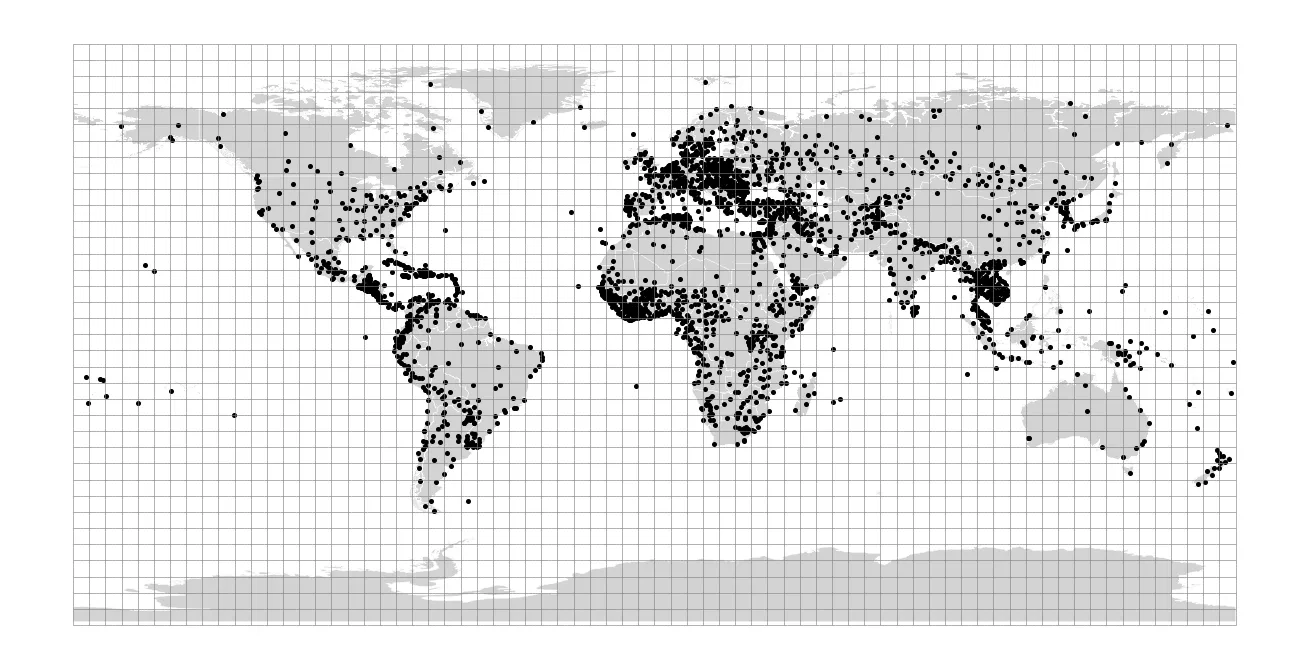
An aside, if drawing the map is slow on your computer: the World Countries dataset is extremely detailed. It contains over 200,000 separate polygons, most of them very small islands, and every map that you draw with it will take ten to twenty seconds to appear. The dataset includes a LAND_TYPE field that classifies each feature as primary land or as an island of a given size. If you would rather trade the smallest islands for speed, keep only the primary land features with the same kind of attribute filter you used for the grid. Every map that you draw from here on will then take about a second. The maps in this tutorial were made with the full dataset. (There is of course a tradeoff that you must consider as the author of this work when deciding how much detail to retain.)
# optional: keep only the mainland of each countrycountries = countries[countries["LAND_TYPE"] == "Primary land"]Changing the map document’s projection
We will utilize a projection developed by ESRI to view the world in an equidistant, conic projection. This means that the distances between points on the world are preferenced over the size or shape of points on the earth. Information about this projection can be found here. In place of the CRS selector wizard in QGIS, you can look this projection up by its code with pyproj:
target_crs = pyproj.CRS("ESRI:54027")print(target_crs.name)print(target_crs.axis_info[0].unit_name)World_Equidistant_ConicmetreNote the ESRI: prefix. QGIS lets you type 54027 alone, but this code is defined by ESRI rather than by the EPSG registry, and pyproj needs to be told which registry to look in.
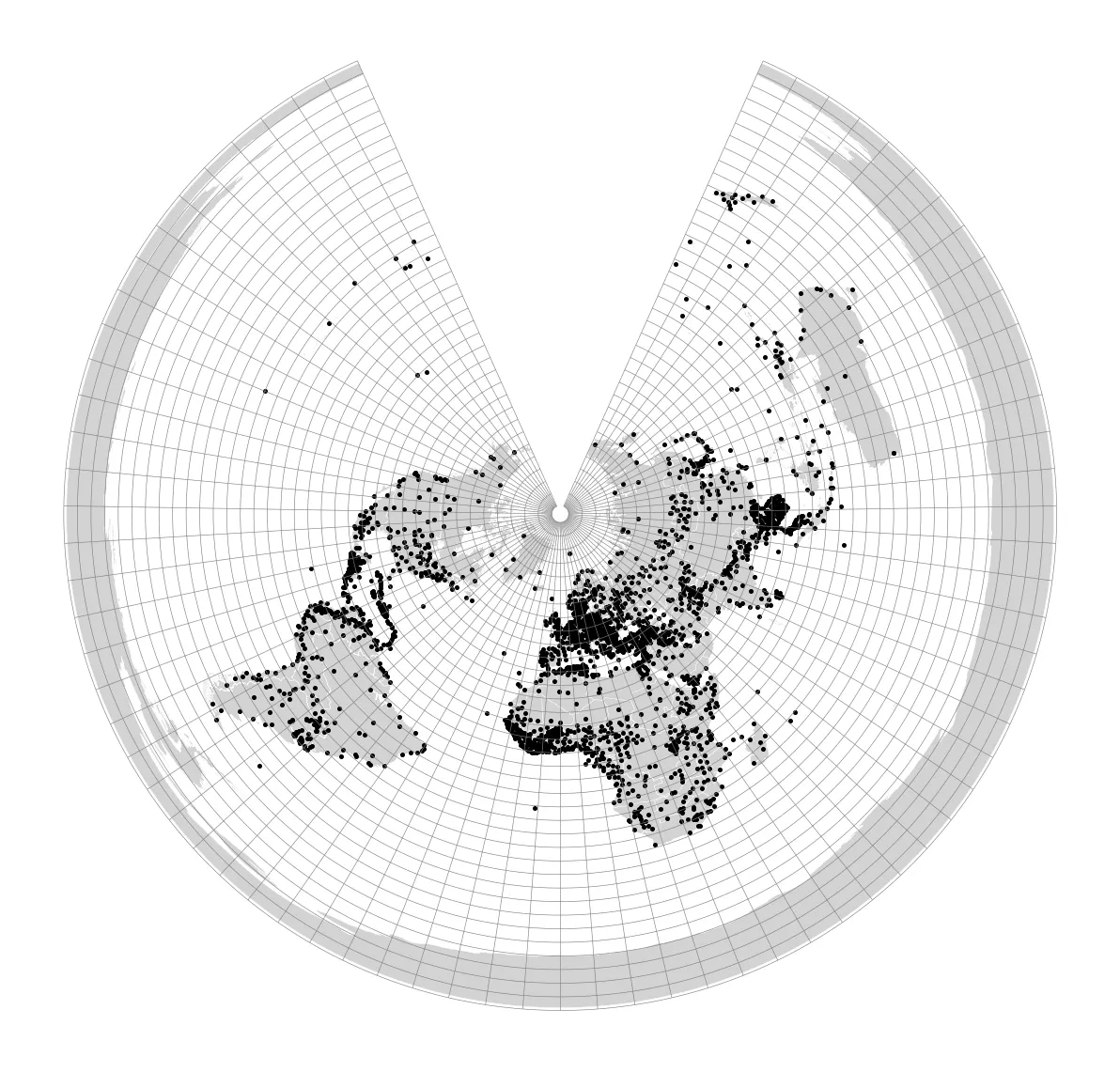
A notebook has no map document with a projection of its own, so there is no single setting to change. The equivalent of changing the project’s coordinate reference system in QGIS is to reproject each layer as you draw it, which is exactly what QGIS does on the fly behind the scenes. to_crs() returns a reprojected copy of a layer, and here we draw that copy without keeping it.
fig, ax = plt.subplots(figsize=(11, 8.5))countries.to_crs("ESRI:54027").plot(ax=ax, facecolor="lightgrey", edgecolor="white", linewidth=0.2)cities.to_crs("ESRI:54027").plot(ax=ax, color="black", markersize=2)grid_5deg.to_crs("ESRI:54027").plot(ax=ax, color="grey", linewidth=0.3)ax.set_axis_off()You will now see the world under this other projection system. Note that the three original layers are unchanged: countries.crs still reports EPSG:4326 since we’re not resetting the variable (we’re only chaining the to_crs() method).
Changing projections
Remember, without changing the projection of the file, layers will look correct per a given projection, but are still internally in reference to the coordinate system of the file. We must reproject the layer to the target projection system to be able to perform analysis or use the layer in another software. Note that this is different than “changing” the layer’s projection system- changing the system without reprojection will set a different origin without recalculating new feature geometries.
GeoPandas keeps these two operations clearly apart, and it is worth learning both names now:
to_crs()reprojects: it recalculates every coordinate into the new coordinate reference system.set_crs()only changes the label: it declares which coordinate reference system the existing coordinates are in, without touching them. This is what you need when a file arrives with no coordinate reference system at all, which is what will happen with the lines you draw in Rhino below. This is destructive (and wrong) if the file already has a coordinate reference system and will cause the reprojection/projection math to be wrong.
To reproject the countries and cities, call to_crs() again and keep the result as a new GeoDataFrame.
countries_54027 = countries.to_crs("ESRI:54027")cities_54027 = cities.to_crs("ESRI:54027")print(countries_54027.crs.name)Then save each one as a shapefile in your project folder, so that the file itself, and not just a layer in your notebook, reflects this projection system. GeoPandas writes the .prj file for you from the coordinate reference system of the GeoDataFrame. You may see a warning that a field name was shortened: the shapefile format limits field names to ten characters. (As antiquated as the shapefile format is, it’s what Grasshopper/Rhino can read and so our only option).
countries_54027.to_file("data/tutorial03/countries_54027.shp")cities_54027.to_file("data/tutorial03/cities_54027.shp")You will import these two shapefiles into Grasshopper in the next section. Compare the coordinates that Rhino reports with the bounds of the reprojected layer, which are now in meters:
print(countries_54027.total_bounds)Drawing shortest paths between world cities
This step is the same in both versions of the exercise. Complete the Drawing shortest paths between world cities section of the QGIS exercise above using the two shapefiles that you just saved, and return here once you have exported your lines from Rhino as a .dxf file. The rest of this section assumes that you saved that file as city_paths.dxf in your data/tutorial03 folder.
Importing into Python
Return to your notebook. Add the newly created layer with read_file(), which reads .dxf files as well as shapefiles.
paths = gpd.read_file("data/tutorial03/city_paths.dxf")print(paths.crs)paths.head()None Layer PaperSpace SubClasses Linetype EntityHandle Text geometry0 0 NaN AcDbEntity:AcDbLine None 3D None LINESTRING Z (-5883303.79 2669849.67 0, -529...As you add the layer, you will notice that it does not inherently know what CRS to use: paths.crs is None (i.e. nothing prints if you run that command). A .dxf file is a drawing, not a map, and carries no coordinate reference system. The coordinates are nonetheless the meters of the equidistant conic projection, because that is the space that you drew in (this is inherited from the 54027 projection and not necessarily the drawing units in Rhino). Use set_crs() (not to_crs()) to record this. The columns that come with the file describe the drawing (which Rhino layer each line was on, and so on) and can be ignored.
Rhino also works in three dimensions, so each line carries a Z coordinate of zero. Drop it, and keep only the lines in case you also exported any points. (Note that GIS/spatial data can also contain Z coordinates, but in this case we don’t need that dimension.) If you look at the geometry entries in the table above, you’ll see the WKT representation includes the Z coordinate, which we will remove in the next step.
LINESTRING Z (-5520949 7916980 0, 867202.49 57...paths = paths.set_crs("ESRI:54027")paths = paths.set_geometry(paths.geometry.force_2d())paths = paths[paths.geom_type == "LineString"].reset_index(drop=True)print(paths.crs, len(paths))Now the lines should register properly on your map:
fig, ax = plt.subplots(figsize=(11, 8.5))countries_54027.plot(ax=ax, facecolor="lightgrey", edgecolor="white", linewidth=0.2)grid_5deg.to_crs("ESRI:54027").plot(ax=ax, color="grey", linewidth=0.3)cities_54027.plot(ax=ax, color="black", markersize=2)paths.plot(ax=ax, color="blue", linewidth=1)ax.set_axis_off()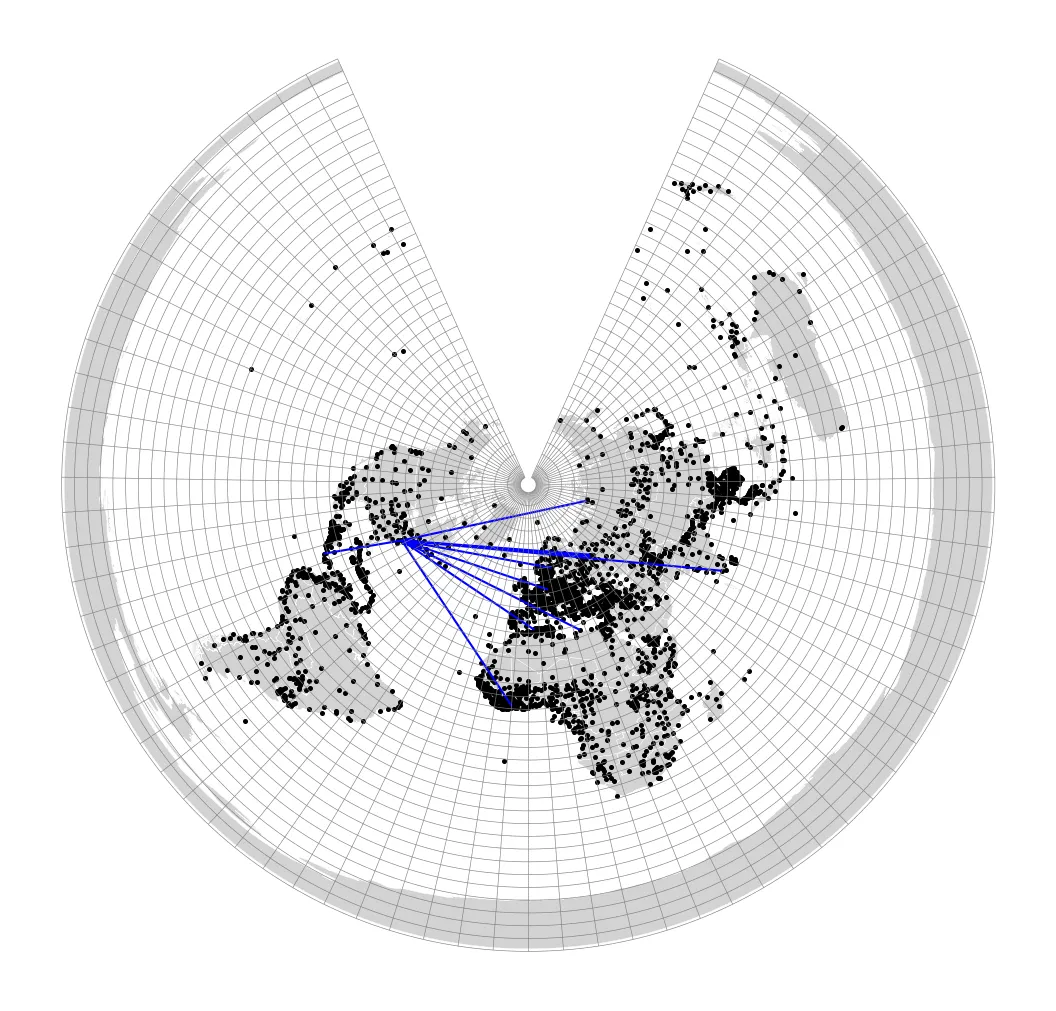
Save the file as a shapefile for use in the next step.
paths.to_file("data/tutorial03/city_paths_54027.shp")Finally, record which cities each line connects. You will need these names to label your maps. For each line, the code below finds the city nearest to its first and last vertex, and keeps those cities as a small layer of their own. In practice, you would likely already know which cities are being connected, but this function wraps a GeoPandas function (distance()) and returns the first matching id it finds for each point (idxmin()). The same logic can be used in other cases where you need to evaluate distance.
def nearest_city(point):    return cities_54027.distance(point).idxmin()
# get the first coordinate point of the line and find the nearest cityfrom_index = [nearest_city(Point(line.coords[0])) for line in paths.geometry]# get the last coordinate point of the line and find the nearest cityto_index = [nearest_city(Point(line.coords[-1])) for line in paths.geometry]# create new atributes on the lines indicating to and from citiespaths["from_city"] = cities_54027.loc[from_index, "CITY_NAME"].valuespaths["to_city"] = cities_54027.loc[to_index, "CITY_NAME"].values# subset the cities to only include those connected by your lines,# using a sorted set to avoid duplicatesmy_cities = cities_54027.loc[sorted(set(from_index + to_index))]paths[["from_city", "to_city"]]
Inspecting results
Change the projection you are viewing the lines in to 4326. As before, this means reprojecting the layers as you draw them.
fig, ax = plt.subplots(figsize=(11, 8.5))countries.plot(ax=ax, facecolor="lightgrey", edgecolor="white", linewidth=0.2)paths.to_crs(4326).plot(ax=ax, color="blue", linewidth=1)my_cities.to_crs(4326).plot(ax=ax, color="black", markersize=10)ax.set_axis_off()The lines still look perfectly straight, which isn’t what we’d expect when projecting from our conic projection. This is a reminder that we are working with tools that are naive to our intentions. Each line you drew in Rhino has only two vertices, one at each end. Reprojecting moves those two vertices and then draws a straight line between them. We need to densify these lines by adding more vertices along their length before reprojecting.
Seeing the lines you drew
To see the true shape of your Rhino lines in another projection, first add vertices along them while they are still in the conic projection, and then reproject. segmentize() adds a vertex at most every 50 kilometers along each line, so that a line that was one segment becomes a chain of a few hundred short ones.
drawn_lines_conic = paths.segmentize(50_000)Before reprojecting, look again at the shape of the conic map. It is a fan, and two parts of the page around it are nowhere on earth: the wedge missing from the fan, and the small circle at its center, which is the North Pole stretched by the projection from a point into a circle. Rhino would not limit you from drawing through this circle for intercontinental connections, and neither QGIS nor pyproj would throw a warning about this. Pyproj would try to project any point you give it, even if it is outside the valid area of the projection, but this can lead to impossible results.
There is a simple test for whether a vertex is really on the earth: project it to latitude and longitude and back again. A vertex inside the fan comes back to where it started. A vertex in the wedge or the circle does not. The two Transformer objects below convert in each direction, and are what to_crs() uses internally.
to_lonlat = pyproj.Transformer.from_crs("ESRI:54027", 4326, always_xy=True)to_conic = pyproj.Transformer.from_crs(4326, "ESRI:54027", always_xy=True)Two small functions can be used to help us navigate this. The first takes a chain of latitude and longitude vertices and turns it into a line, broken into pieces wherever the line cannot be drawn continuously on a flat map: where a vertex has to be left out, and where the line crosses the 180th meridian (a jump from a longitude of 180 to a longitude of -180 would otherwise be drawn as a streak across the entire page). The second applies the round-trip test to one of your lines and passes the result to the first. You will reuse the first function for the shortest paths below.
def break_line(coords, keep=None):    '''    Breaks a line into pieces wherever it cannot be drawn continuously on a flat map.
    coords: coordinates to assess    keep: boolean array indicating which coordinates to keep (based on whether or not they are in the representable area of the projected map)    '''    if keep is None:        # create an array of True values for each coordinate        keep = np.ones(len(coords), dtype=bool)    pieces, piece = [], []    for i, (lon, lat) in enumerate(coords):        # assess whether the line crosses the antimeridian        # the antimeridian is the line of longitude at 180 degrees east or west        crosses_antimeridian = i > 0 and abs(lon - coords[i - 1, 0]) > 180        if not keep[i] or crosses_antimeridian:            if len(piece) > 1:                pieces.append(piece)            piece = []        if keep[i]:            piece.append((lon, lat))    if len(piece) > 1:        pieces.append(piece)    return LineString(pieces[0]) if len(pieces) == 1 else MultiLineString(pieces)

def keep_on_earth(line_in_conic):    # determine which coordinates are still on the earth after a round-trip projection    x, y = np.array(line_in_conic.coords).T    # project the coordinates from the conic projection back to longitude and latitude    lon, lat = to_lonlat.transform(x, y)    # project the coordinates back to the conic projection to see how far they moved    x_back, y_back = to_conic.transform(lon, lat)    # check which coordinates are still close to their original positions in the conic projection    on_earth = np.hypot(x_back - x, y_back - y) < 1    # break the line into pieces wherever it cannot be drawn continuously on a flat map. the on_earth array indicates which coordinates are still valid, and if not    # they are dropped from the resulting line pieces.    return break_line(np.column_stack([lon, lat]), on_earth)
Now apply it to every line. The result is in latitude and longitude (epsg:4326), but it was made from a layer labelled ESRI:54027, so this is the one place in the tutorial where set_crs() is the right tool: the coordinates are already correct and only the label needs to change. The last line records which of your lines lost vertices along the way.
drawn_lines = paths.copy()drawn_lines["geometry"] = drawn_lines_conic.apply(keep_on_earth).set_crs(4326, allow_override=True)drawn_lines["leaves_the_map"] = drawn_lines.geometry.count_coordinates() < drawn_lines_conic.count_coordinates()drawn_lines[["from_city", "to_city", "leaves_the_map"]]Now let’s draw the lines.
fig, ax = plt.subplots(figsize=(11, 8.5))countries.plot(ax=ax, facecolor="lightgrey", edgecolor="white", linewidth=0.2)grid_5deg.plot(ax=ax, color="grey", linewidth=0.2)drawn_lines.plot(ax=ax, color="black", linewidth=0.8)my_cities.to_crs(4326).plot(ax=ax, color="black", markersize=10)ax.set_axis_off()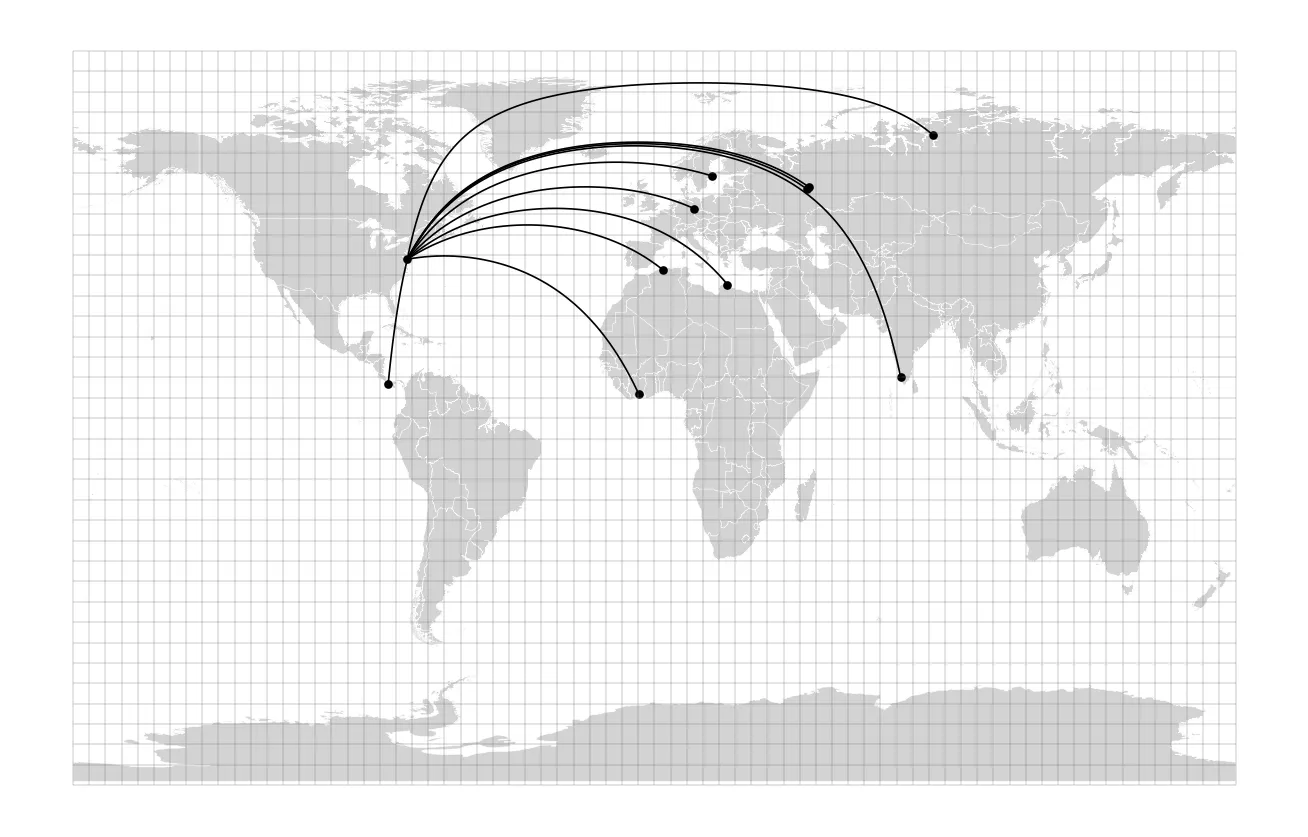
The lines now curve. It is important to be clear about what you are looking at. These are still exactly the lines you drew in Rhino: straight lines on the equidistant conic map. Nothing about the shape of the earth has been used to make them. They curve here only because you are now looking at them in a different projection, and a straight line in one projection is a curve in almost any other. They are not, so far as we know yet, the shortest paths between your cities.
Two things to watch for on your own map:
- A line that crosses the 180th meridian is drawn in two pieces, one running off each side of the map.
- A line with
leaves_the_mapset toTruehas a gap in it. The gap is the stretch that passed through the wedge or the pole circle, and there is no honest way to draw it, because it is not on the earth.
Measuring the lines
We will use the Geod class from pyproj to measure the lines relative to the curvature of the earth. A Geod object knows the shape of the earth (here the WGS 84 ellipsoid) and can measure distances along its surface. It is a ruler based on the ellipsoid we specify, providing more accurate distance calculations.
geod = pyproj.Geod(ellps="WGS84")There are three different distances that can be attached to each of your lines, and it is worth measuring all three:
- The length Rhino reports. This is the length of the straight line in the meters of the conic projection, and is what
.lengthreturns for a layer in that projection. - The length of the line you drew, measured along the surface of the earth.
geod.geometry_length()walks along the densified line, vertex by vertex, and adds up the distance across the earth’s surface between each pair. For a line that leaves the map (i.e. travels through the North Pole) this has no meaning, since part of the line is nowhere, so it is recorded asNaN. - The shortest possible distance between the two cities.
geod.inv()takes the two endpoints and returns the shortest distance between them across the ellipsoid, regardless of the line you drew.
paths_4326 = paths.to_crs(4326)
distances = paths[["from_city", "to_city"]].copy()distances["rhino_length_km"] = paths.length / 1000 # from meters
# filter out cases that pass outside the projected map surfacedistances["drawn_line_on_earth_km"] = np.where(    drawn_lines["leaves_the_map"], np.nan, drawn_lines.geometry.apply(geod.geometry_length) / 1000)
# calculate the shortest path via the ellipsoid using pyproj# pass in each line's endpoints to geod.inv to get the shortest distance across the ellipsoid, returning distance which is in the 2nd index of the tuple (meters)distances["shortest_path_km"] = [    geod.inv(*line.coords[0], *line.coords[-1])[2] / 1000 for line in paths_4326.geometry]distances.round()
With Annapolis as the starting point, for example:
from_city to_city rhino_length_km drawn_line_on_earth_km shortest_path_km0 Annapolis Leipzig 6739.0 6691.0 6686.01 Annapolis Medea 6976.0 6794.0 6771.02 Annapolis Tiassale 8696.0 8151.0 8020.03 Annapolis Yaskar-Ola 8236.0 8199.0 8197.04 Annapolis David 3449.0 3434.0 3434.0Compare the three columns for each of your cities. An “equidistant” projection only preserves distances along certain lines. In this one they are the meridians and a single standard parallel at 60 degrees north, so a straight line on the map is close to true only when it runs roughly along one of those. In the example, the lines to Leipzig and David are within a fraction of a percent of the shortest path, while the line to Tiassale is approximately 8.5% longer than the shortest path.
Drawing the shortest paths
As we can see, a shorter path exists. The same Geod object can be used to calculate and draw it. The function below takes each line, reprojected to latitude and longitude, and returns a new line with 200 points placed along the shortest path across the earth’s surface between its two ends. These paths are on the earth by definition (we are operating based on the geoid and not a projected surface), so break_line() only has to handle the 180th meridian for them.
def shortest_path(line, n_points=200):    x0, y0 = line.coords[0][:2] # starting point    x1, y1 = line.coords[-1][:2] # ending point    # expand the array of coordinates to include the intermediate points along the geodesic: starting point, 200 intermediate points calculated, and ending point    coords = np.array([(x0, y0), *geod.npts(x0, y0, x1, y1, n_points), (x1, y1)])    return break_line(coords)

shortest_paths = paths_4326.copy()shortest_paths["geometry"] = paths_4326.geometry.apply(shortest_path)
Now draw the two sets of lines together.
fig, ax = plt.subplots(figsize=(11, 8.5))countries.plot(ax=ax, facecolor="lightgrey", edgecolor="white", linewidth=0.2)grid_5deg.plot(ax=ax, color="grey", linewidth=0.2)drawn_lines.plot(ax=ax, color="black", linewidth=0.8)shortest_paths.plot(ax=ax, color="deeppink", linewidth=1.2)my_cities.to_crs(4326).plot(ax=ax, color="black", markersize=10)ax.set_axis_off()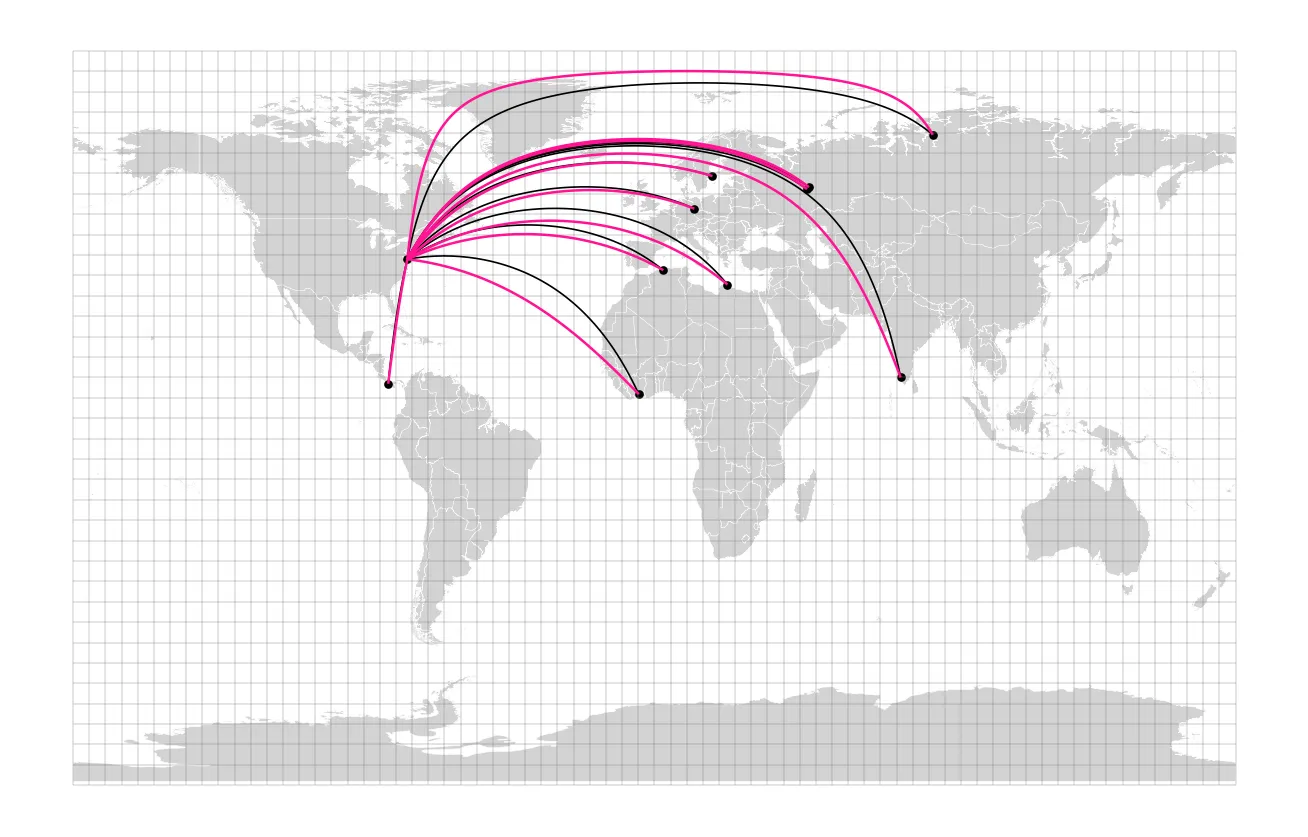
The two curves share their start and end points, but have slightly different paths. The gap between them is a project of this projection being well-suited to measuring distance especially well along the north-south axis, and less-well along the east-west axis. The east-west distortion increases with distance from 60° North, making the distortion of the equidistant conic projection made visible. Note the differences compared to the straight lines that you drew in Rhino.
Composing the maps
Per the deliverables listed above, you must submit four PDF maps that clearly represent these lines, and the cities they connect, to a lay audience. Choose three projections that represent the world at the global scale, or ones that are bad, intersting, or effective/problematic in their own way. In place of filtering by typing “world” in the Project Properties - CRS menu, you can list the world projections that pyproj knows about:
world_projections = [ (info.code, info.name) for info in pyproj.database.query_crs_info(auth_name="ESRI", pj_types="PROJECTED_CRS") if info.name.startswith("World_")]world_projectionsSome examples include World_Gall_Stereographic (ESRI:54016) and World_Robinson (ESRI:54030). In QGIS you would compose each map in a separate print layout. In matplotlib you can instead write one loop that draws the same layers in each projection and adds each map as a page of a single PDF, so that the combined PDF that you submit comes out of a single cell. Replace the projections in the dictionary below with your own choices, and adjust the styling to suit your map.
projections = {    "Equidistant Conic": "ESRI:54027",    "Robinson": "ESRI:54030",    "Gall Stereographic": "ESRI:54016",    "Mollweide": "ESRI:54009",}
with PdfPages("tutorial03_maps.pdf") as pdf:    for name, crs in projections.items():        # page size in inches: 11 x 8.5 is a landscape letter page        fig, ax = plt.subplots(figsize=(11, 8.5))        # prep and map the data layers in each projection        countries.to_crs(crs).plot(ax=ax, facecolor="lightgrey", edgecolor="none", rasterized=True)        grid_5deg.to_crs(crs).plot(ax=ax, color="grey", linewidth=0.2)        drawn_lines.to_crs(crs).plot(ax=ax, color="black", linewidth=0.8, label="Line drawn in Rhino (straight in the Equidistant Conic projection)")        shortest_paths.to_crs(crs).plot(ax=ax, color="deeppink", linewidth=1.2, label="Shortest path on the earth")        cities_in_crs = my_cities.to_crs(crs)        cities_in_crs.plot(ax=ax, color="black", markersize=15)
        # label each city        for city in cities_in_crs.itertuples():            ax.annotate(city.CITY_NAME, (city.geometry.x, city.geometry.y), xytext=(4, 4), textcoords="offset points", fontsize=8)
        # label each shortest path with its distance at its midpoint        for line, km in zip(shortest_paths.to_crs(crs).geometry, distances["shortest_path_km"]):            midpoint = line.interpolate(0.5, normalized=True)            ax.annotate(f"{km:,.0f} km", (midpoint.x, midpoint.y), fontsize=7, color="deeppink", ha="center")
        # prep the title, legend, and other map elements        ax.set_title(f"{name} projection ({crs})", loc="left", fontsize=14)        ax.legend(loc="lower left", frameon=False, fontsize=8)        ax.set_axis_off()        fig.text(0.05, 0.03, "Data: World Cities and World Countries, Esri; World Latitude and Longitude Grids. Map by: your name", fontsize=8)
        pdf.savefig(fig)        plt.close(fig)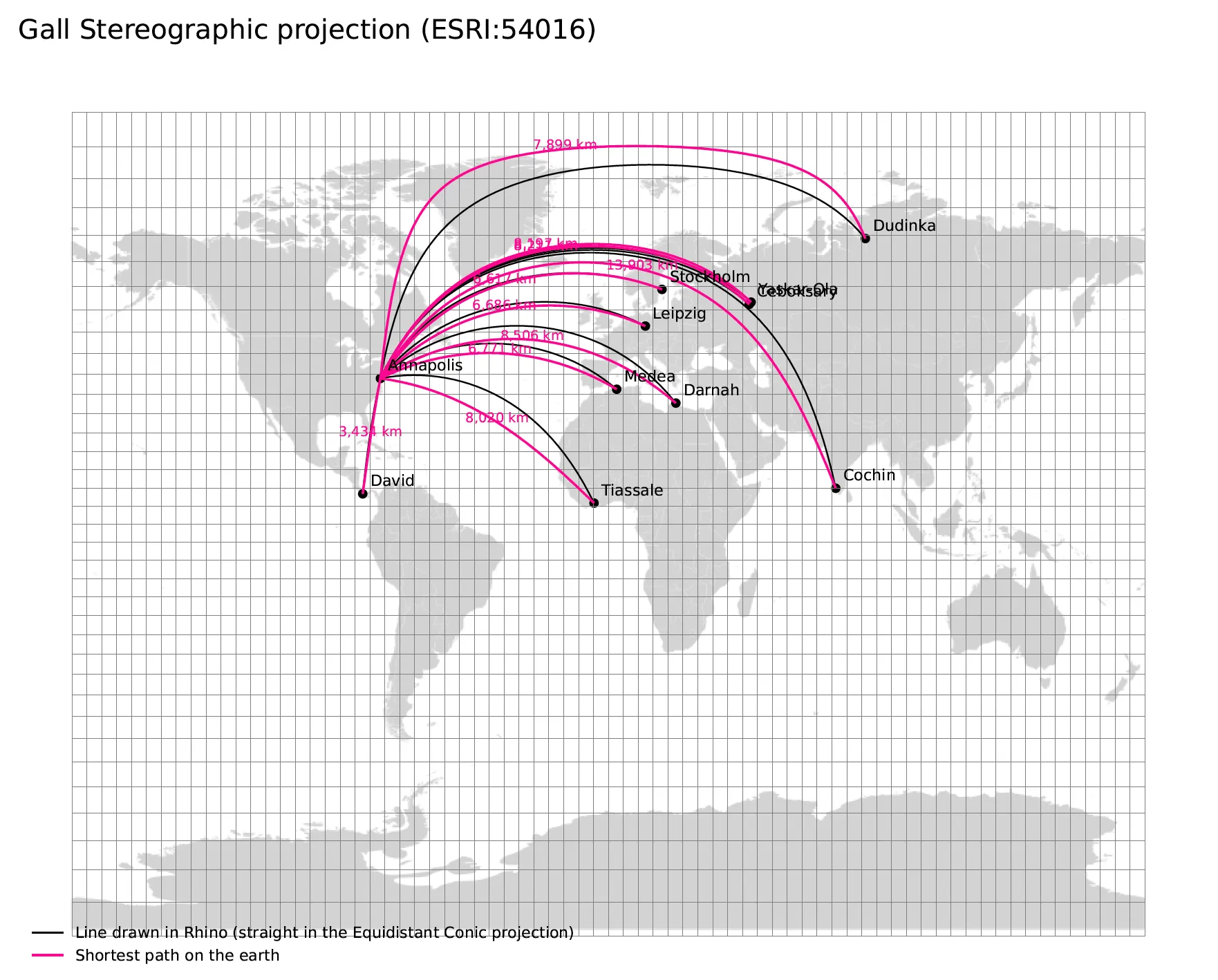
A few notes on this cell:
rasterized=Truedraws the countries as an image inside the PDF while the lines, points, and labels remain vector-based. Without it, the extremely detailed countries layer produces a PDF of over 100 MB. This is the same division of labor described in the notes on workflow in tutorial 01: raster fills as images, vector elements editable in Illustrator. To continue to edit the maps in Illustrator, save each page separately withfig.savefig(f"{name}.svg")inside the loop.- Remember that the primary goal of each map is to convey the spatial relationship between the cities you chose, so the map scale and layout should reflect those relationships appropriately. Use
ax.set_xlim()andax.set_ylim()to zoom in to the part of the world that your cities occupy, and consider whether all four maps should share the same extent. You may need to play around with label placement (which is much easier to do in Illustrator) to make sure things are legible.
Submit the combined PDF to Canvas.